
Digital Case Manager
How to use DCM
LIA helps analyse, research and reason through legal work.
DCM manages what happens next.
Digital Case Manager is the operational layer inside LIA for managing matters, intake, tasks, deadlines, assignments, next actions and human confirmation.
On LIA Chambers, DCM is live for shared firm matters with controlled access, defined roles and an append-only audit record.
DCM for private Pro and SC matters is planned.
Human judgment remains the authority.
Live on LIA Chambers · Planned for Pro and SC
This walk-through uses the fictional demo firm Halden & Marsh and a fictional California commercial matter: Cedar Hill Apparel Inc. — purchase-order cancellation, against Redwood Textiles LLC. Times in the product appear in your timezone. Features that are not switched on are not shown here.
1. Sign in and open the firm
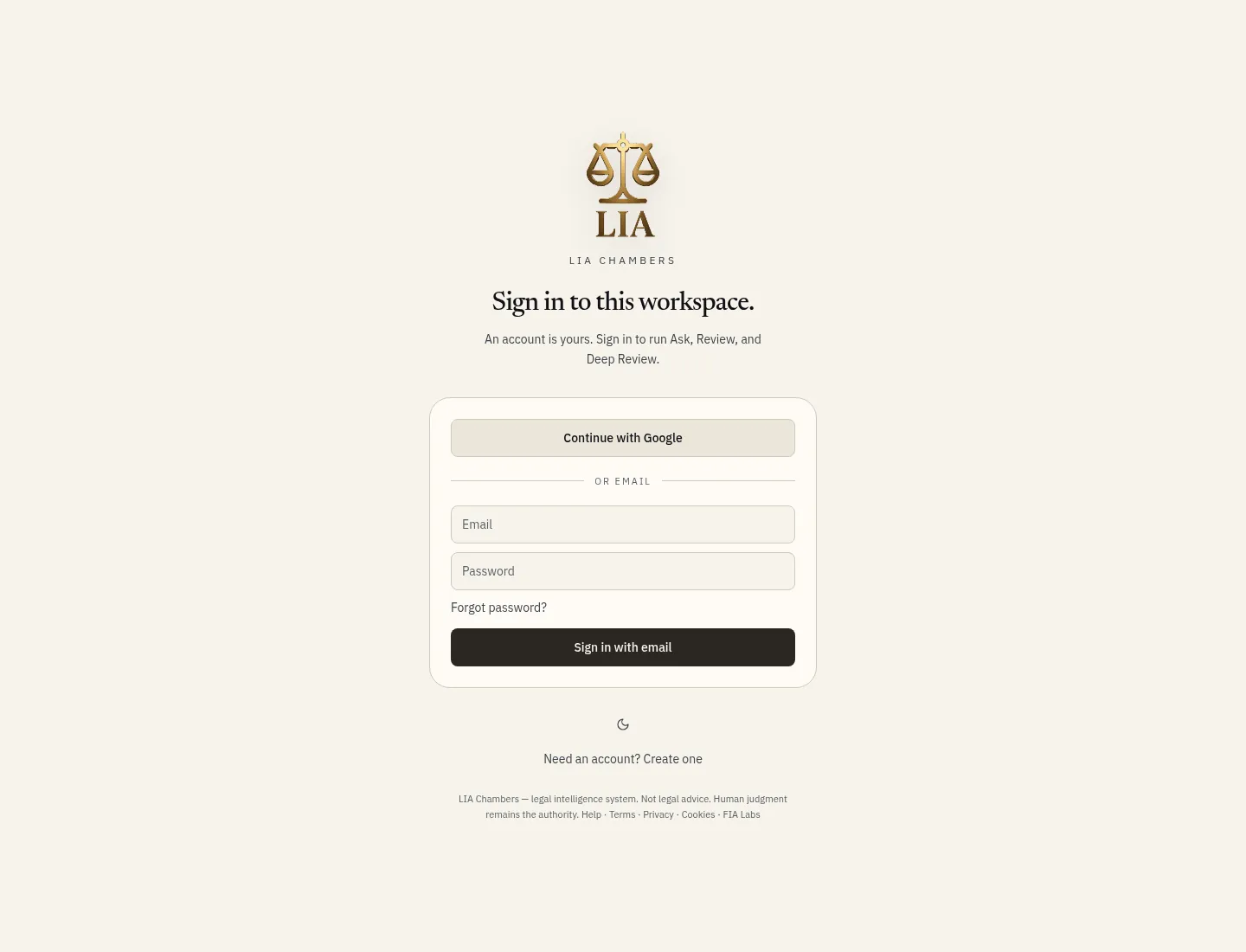
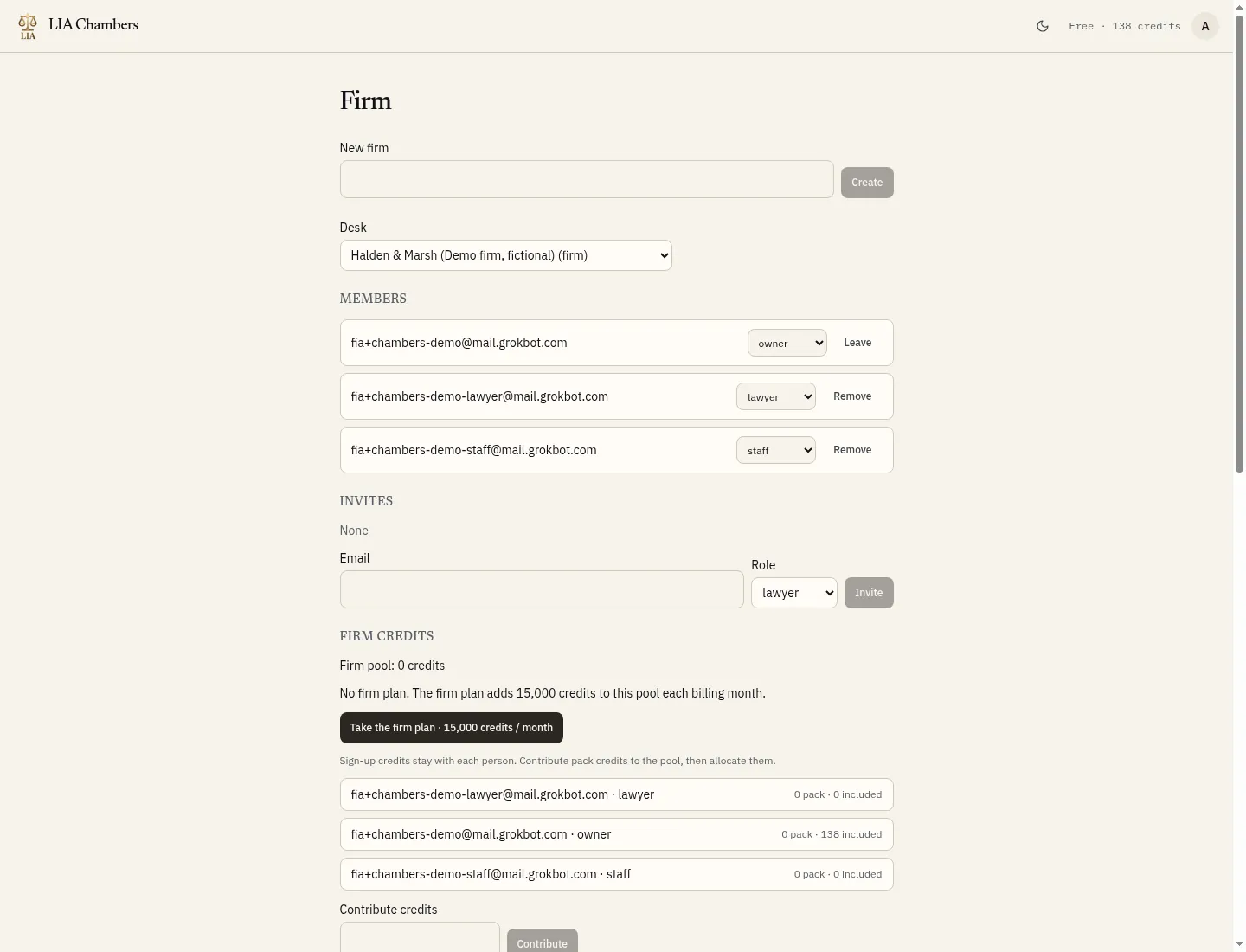
Sign in at chambers.legalintel.ai with your email, or use Continue with Google. Then open Firm and choose the firm desk — here, Halden & Marsh (Demo firm, fictional). Members and firm credits appear on this page.
2. Members, roles, and inviting a lawyer
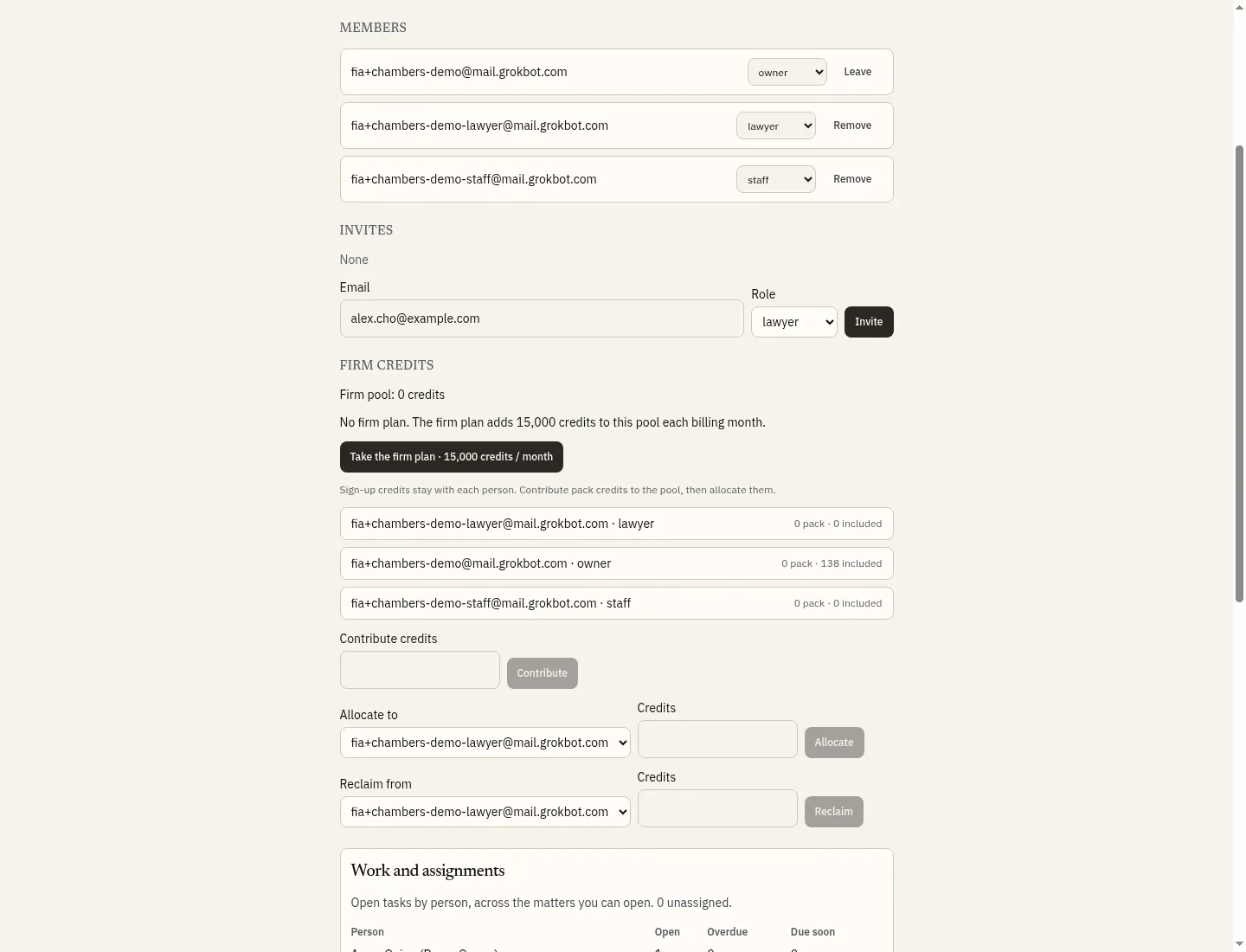
A firm has an owner, lawyers and staff. To add a lawyer, enter their email, choose the lawyer role, and click Invite. This walk-through does not send an invite; the form is shown ready to send.
3. The firm credit balance
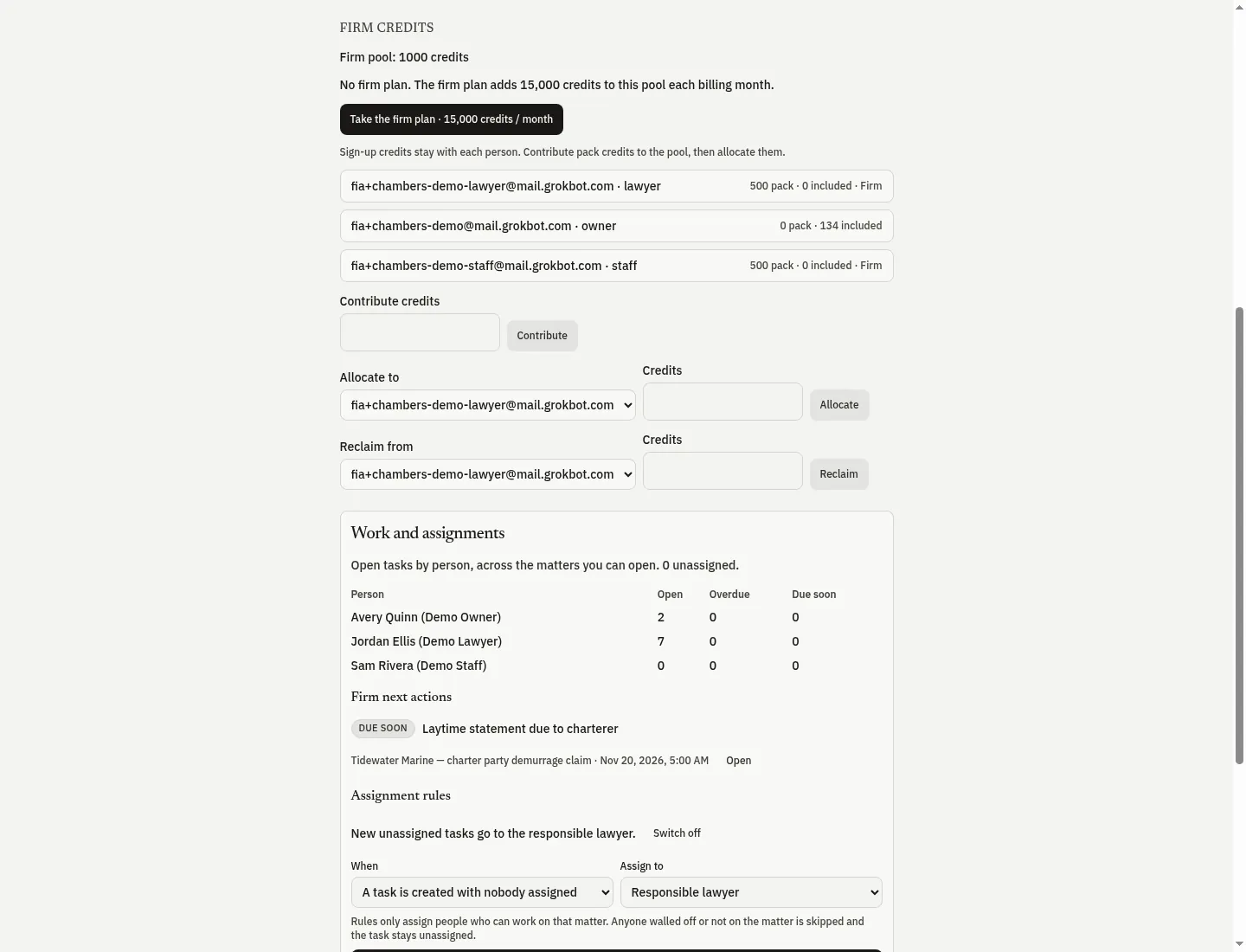
Each person keeps their own sign-up credits. The firm also has a shared pool: contribute pack credits, then allocate them to members. In this demo the owner contributed 2,000 pack credits, allocated 500 each to the lawyer and the staff member, and 1,000 remain in the firm pool. The owner keeps 134 included credits (4 were used on the question in step 9). Further down the same page, Work and assignments shows open tasks by person, firm next actions, and a rule that new unassigned tasks go to the responsible lawyer.
4. A new enquiry: by email, or by hand
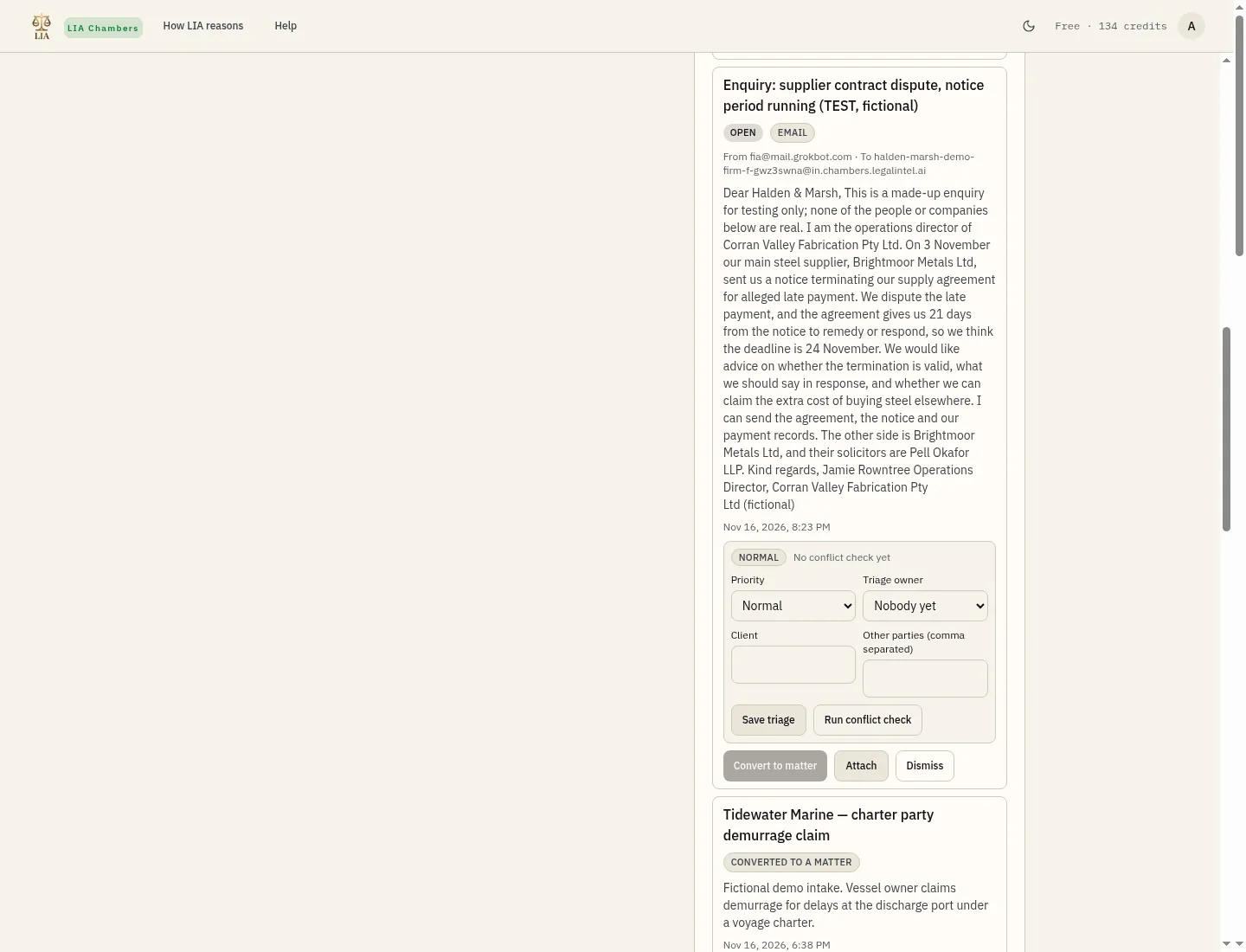
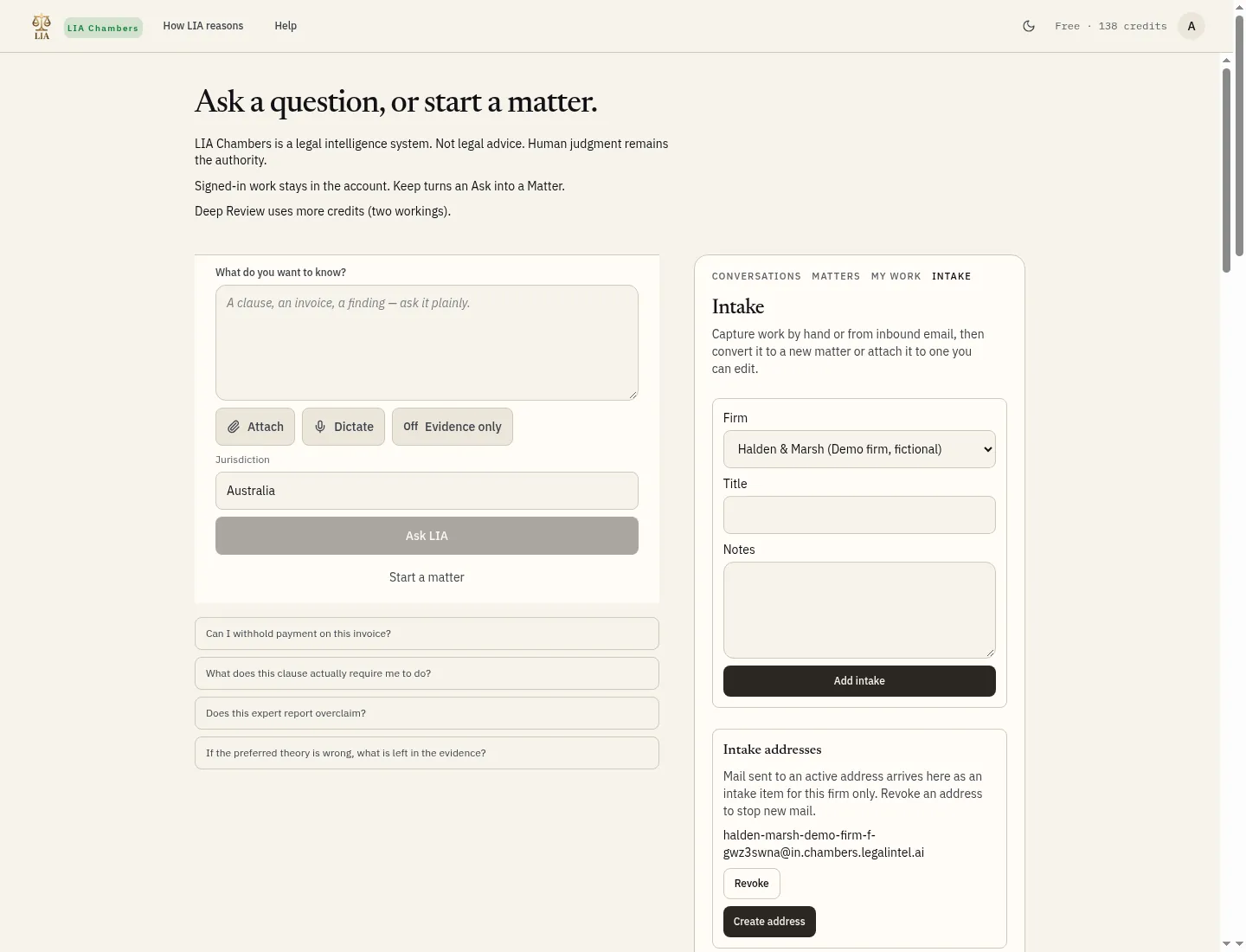
Mail sent to the firm's intake address arrives in Intake, marked Email. The example below is a test enquiry about Corran Valley Fabrication (fictional). It is left open and untriaged for a live demo — do not triage or convert it. You can also add an enquiry by hand: choose the firm, give it a title and notes, and click Add intake. For this guide we added a separate enquiry: Cedar Hill Apparel Inc. — purchase-order cancellation.
5. Triage, including the conflict check
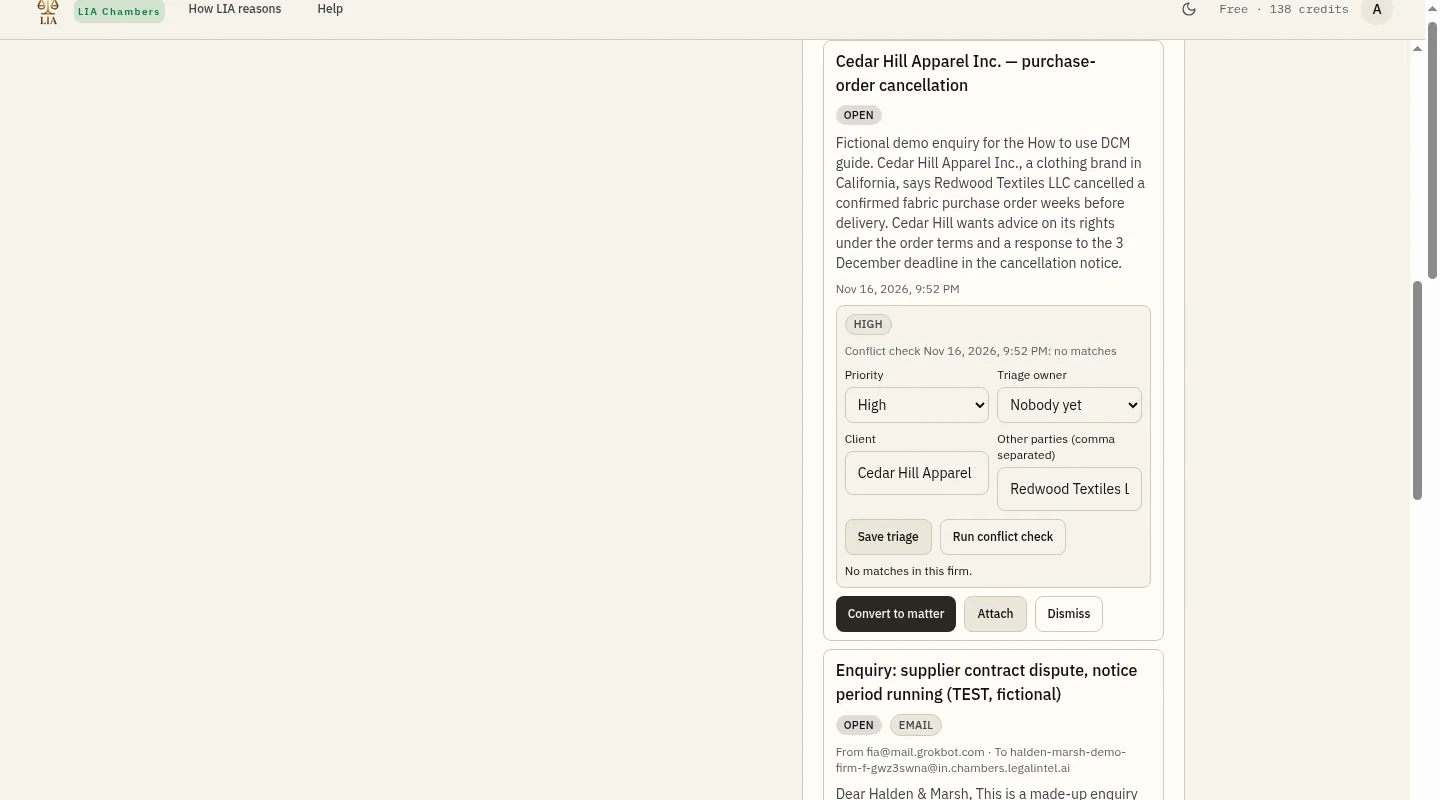
Open the new enquiry and triage it. Set a priority, name the client and the other parties, then Save triage. Click Run conflict check before you open a matter. For Cedar Hill Apparel Inc. against Redwood Textiles LLC, the check found no matches in this firm.
6. Turning the intake into a matter
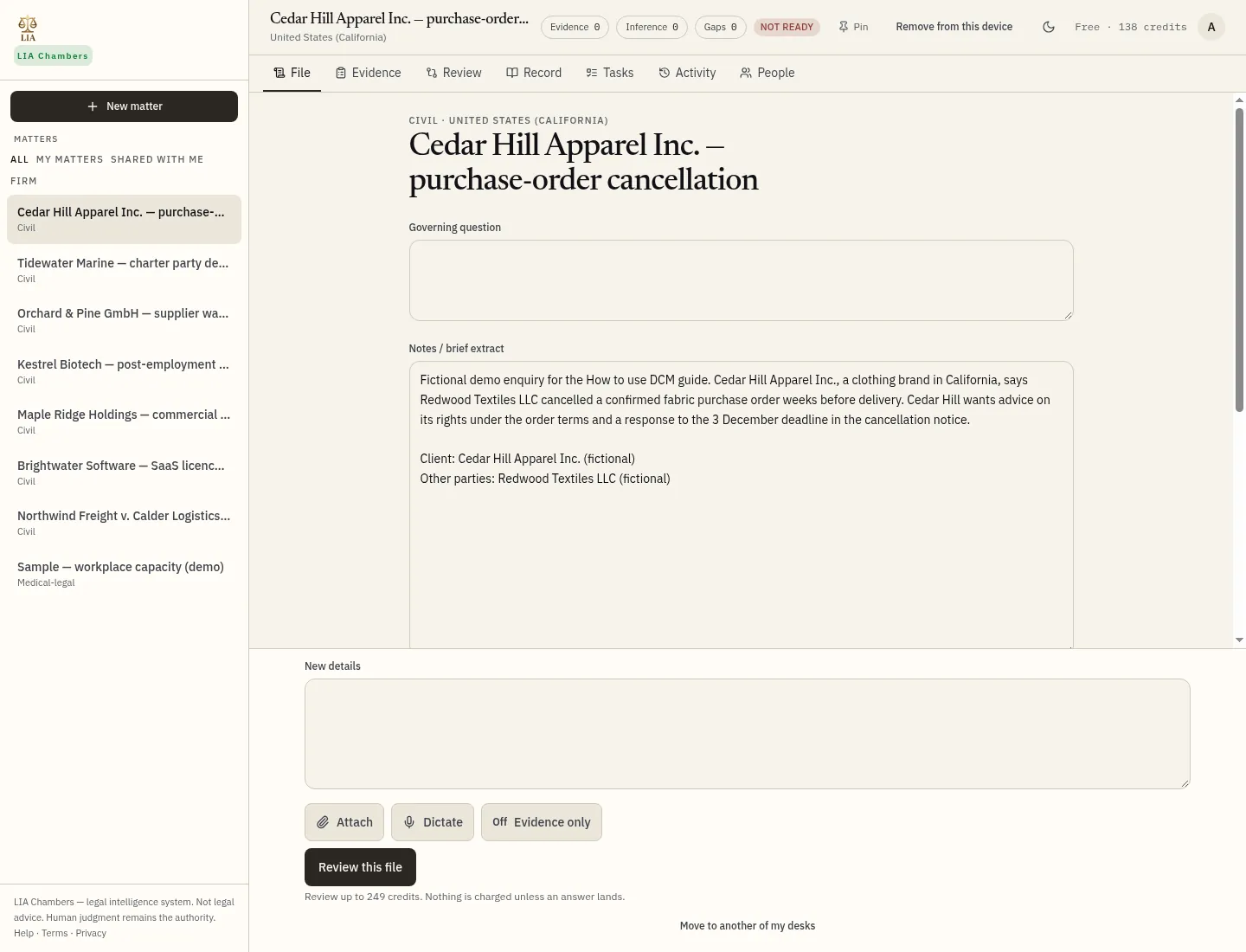
Click Convert to matter. DCM opens a shared matter with the title, jurisdiction and notes from intake. This example is a civil matter in the United States (California).
7. Tasks, deadlines and assignments
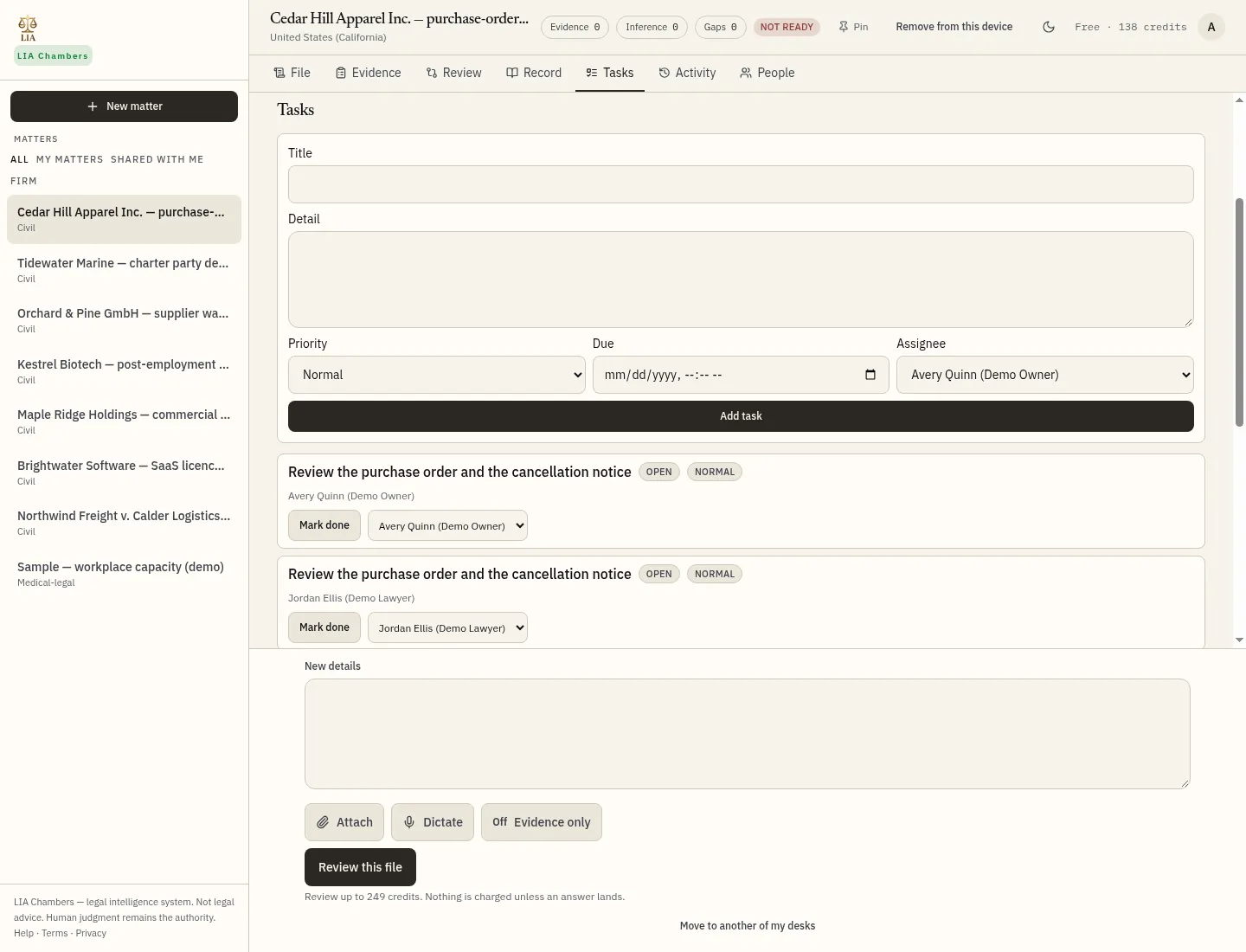
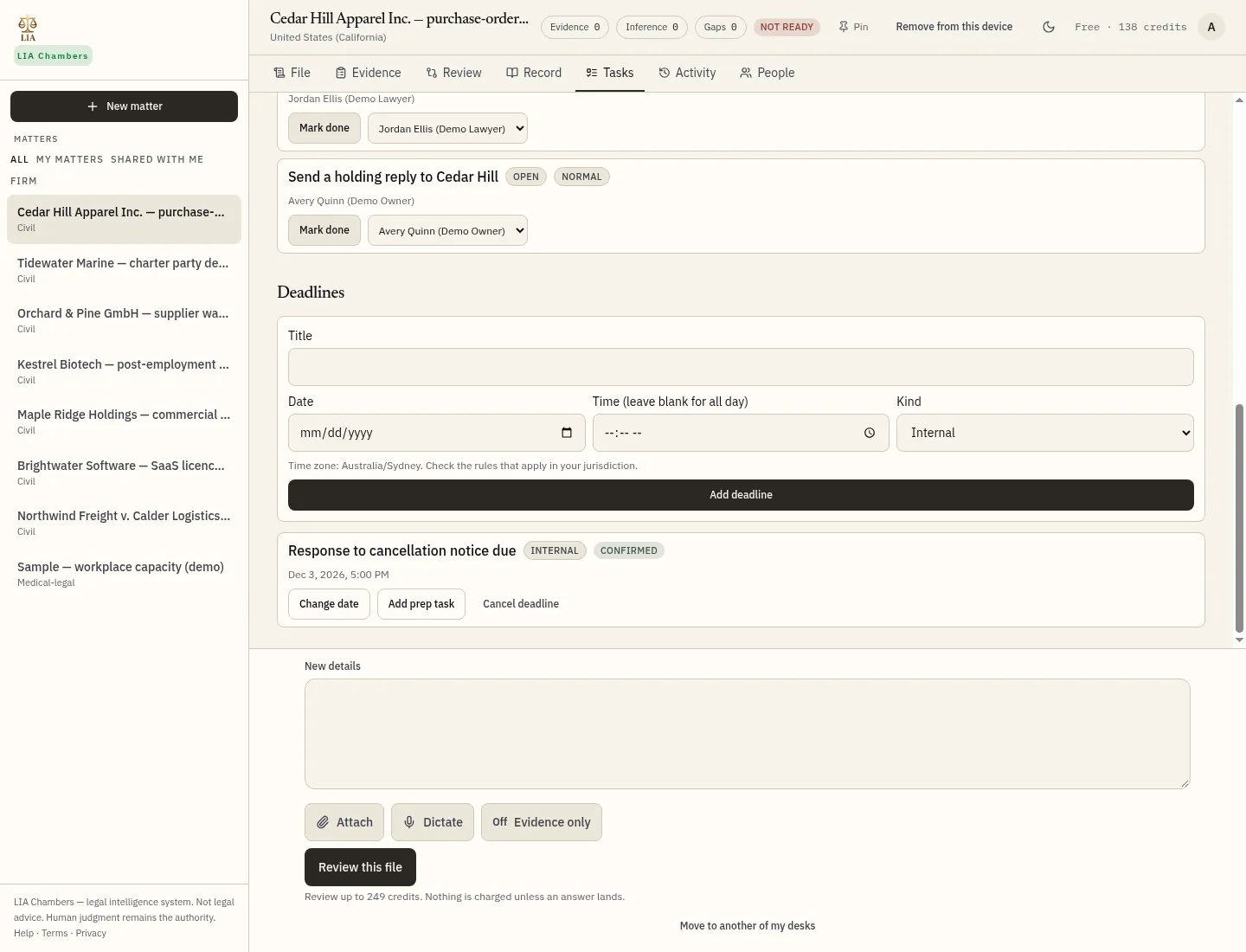
On the matter's Tasks tab, add a task and assign it to a lawyer who has access to the matter. Here, “Review the purchase order and the cancellation notice” is assigned to Jordan Ellis (Demo Lawyer). Add a deadline with a date, time and kind. “Response to cancellation notice due” is set for 3 December 2026 at 5:00 p.m., marked Internal and Confirmed. Dates use your timezone.
8. Next actions
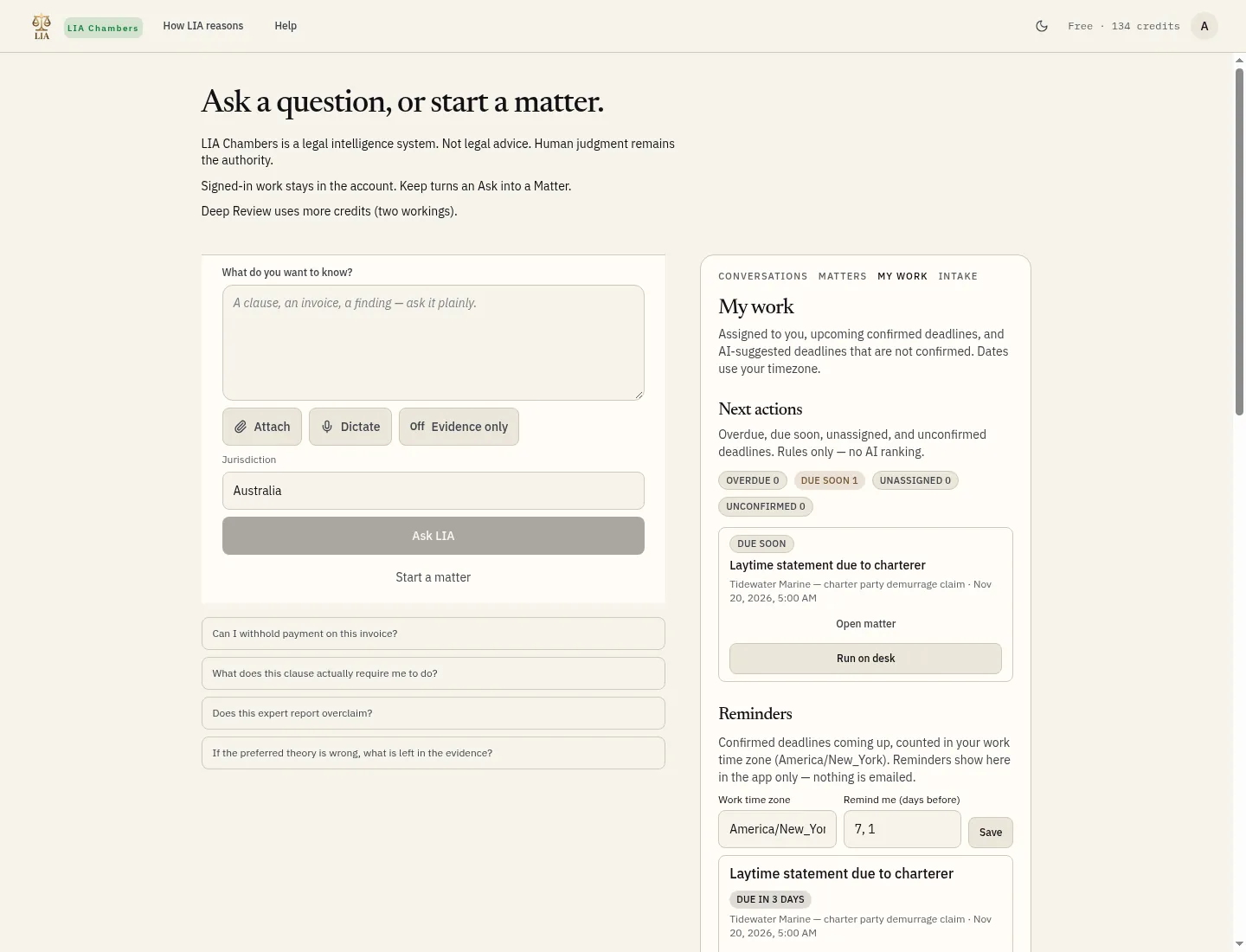
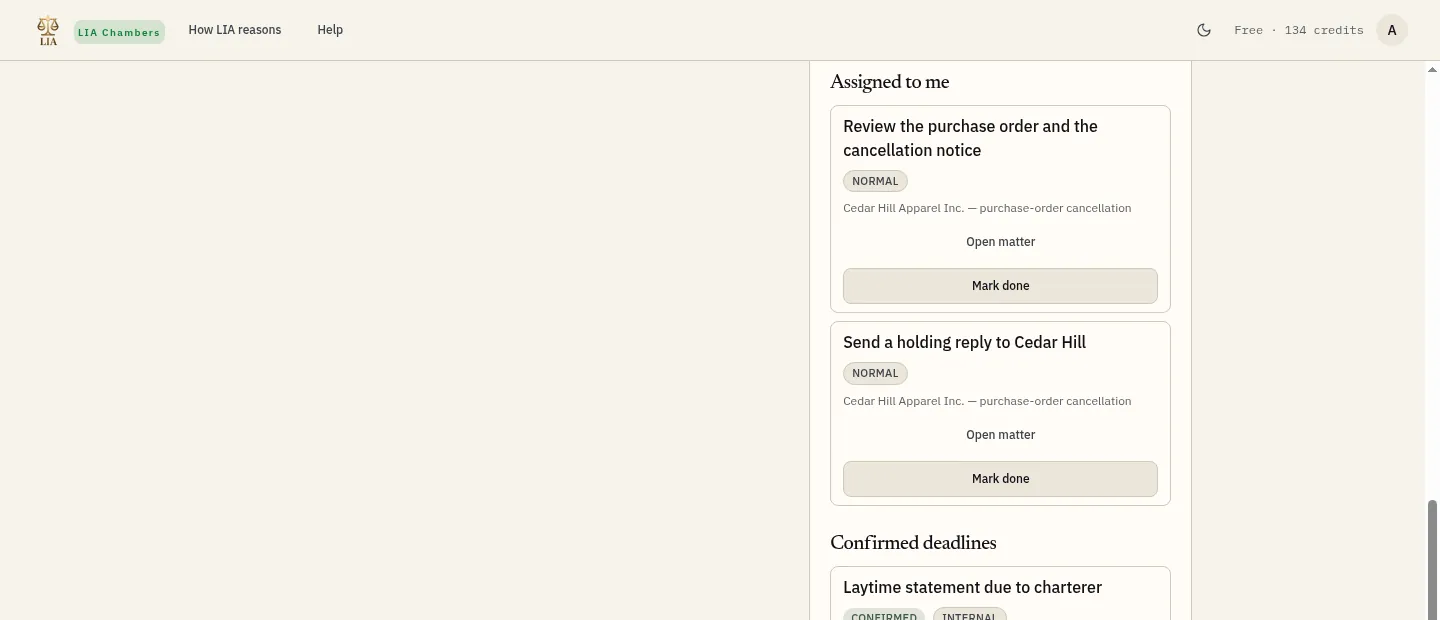
My work, on the desk, lists next actions: overdue, due soon, unassigned and unconfirmed deadlines. Run on desk opens the matter so you can ask a question; it does not use credits. Assigned tasks and confirmed deadlines for you appear further down the same list.
9. Running an AI question on the matter
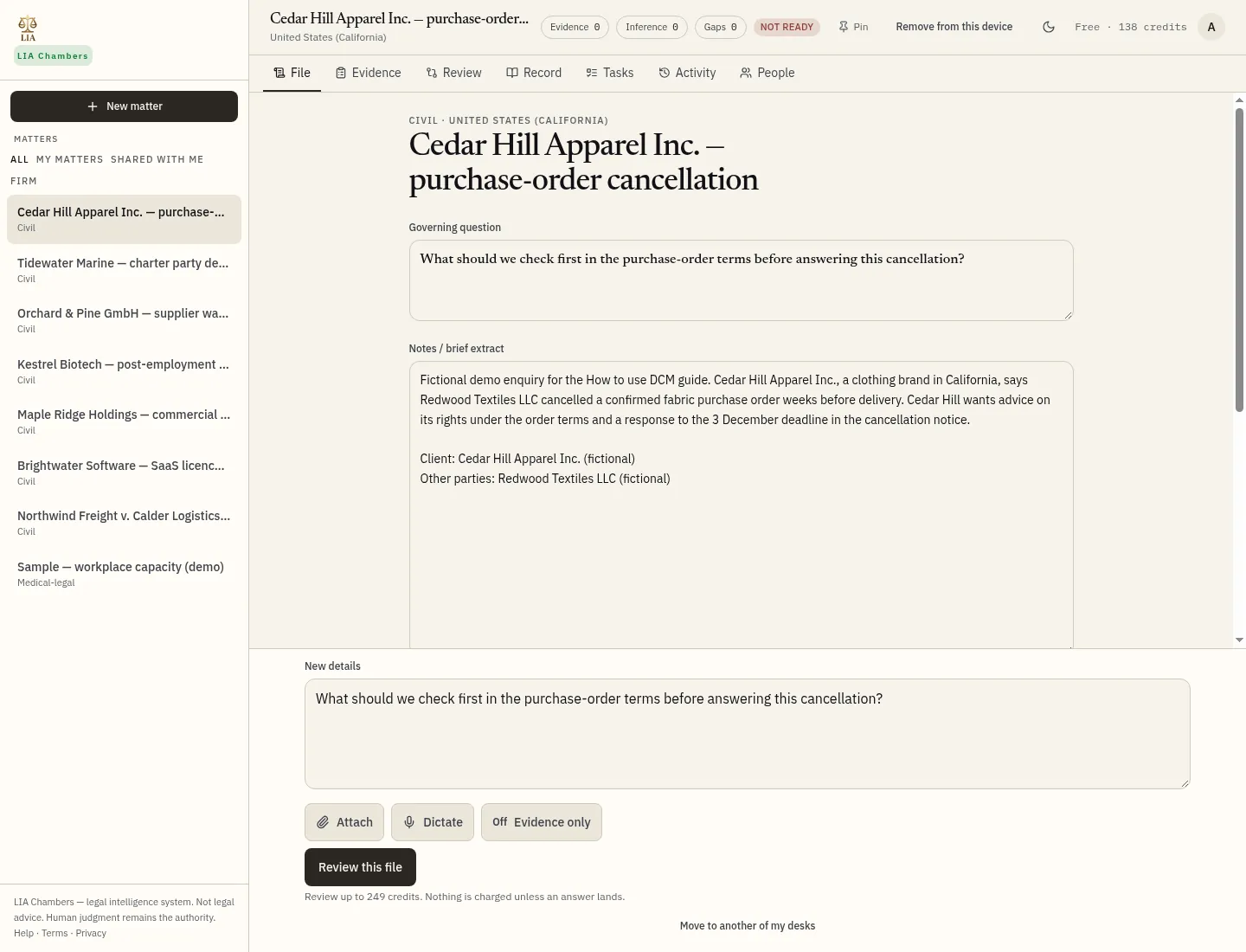
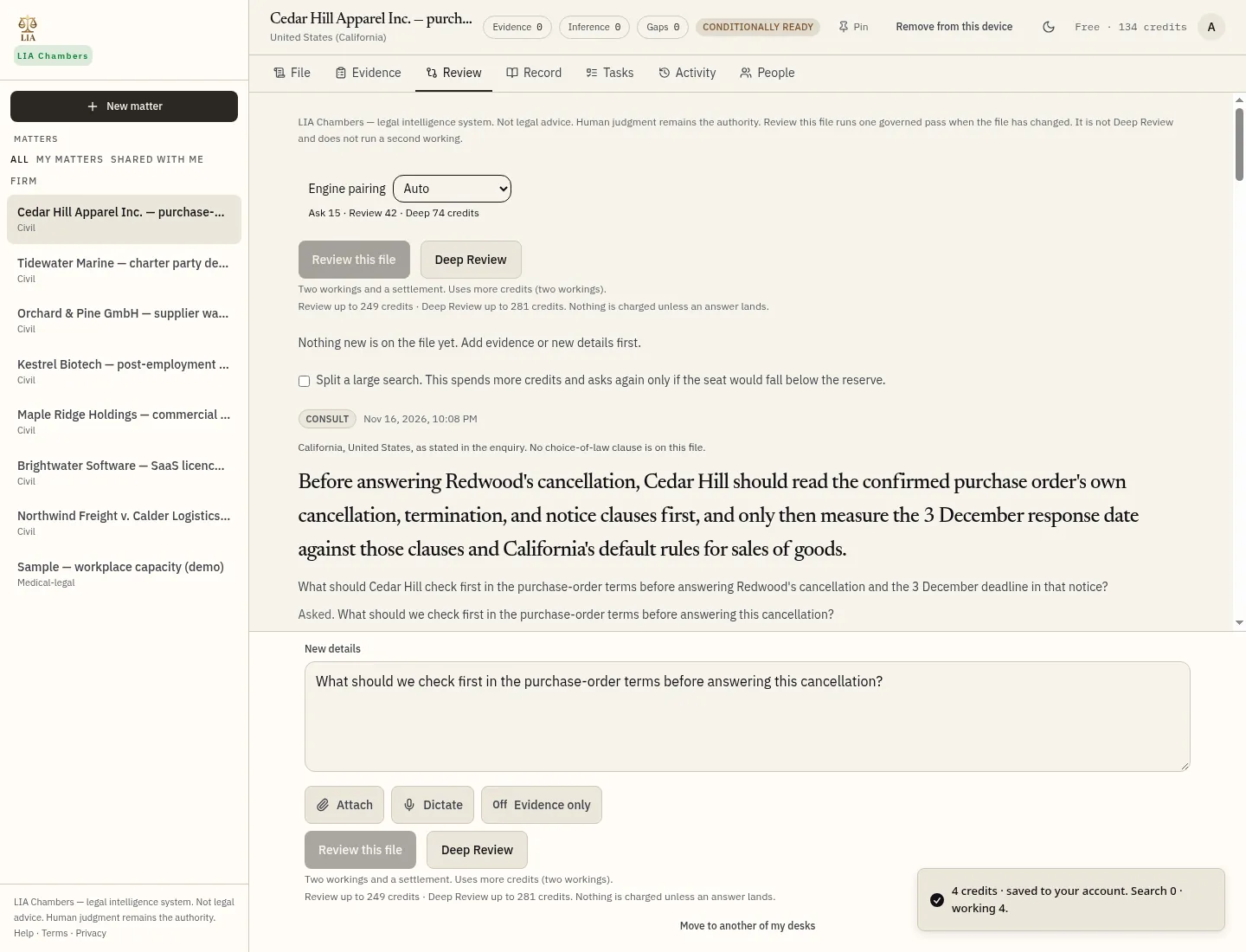
On the matter File tab, type a short question in Governing question (you can also put it in New details). Click Review this file to run one governed pass. Nothing is charged unless an answer lands. We asked: “What should we check first in the purchase-order terms before answering this cancellation?” The answer opens on the Review tab. This short run used 4 credits. Deep Review is a separate, heavier two-working pass; we did not run it.
10. The audit log
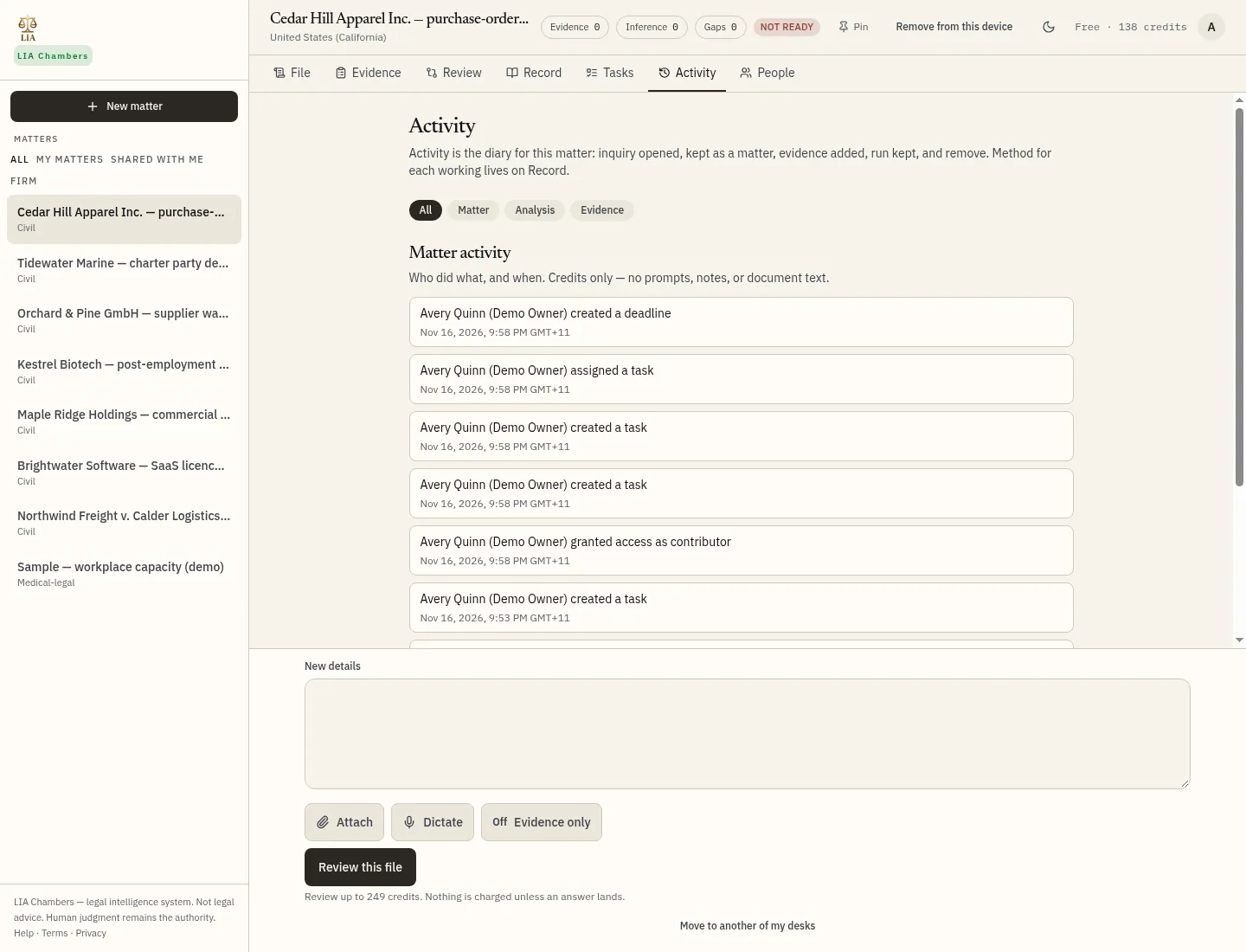
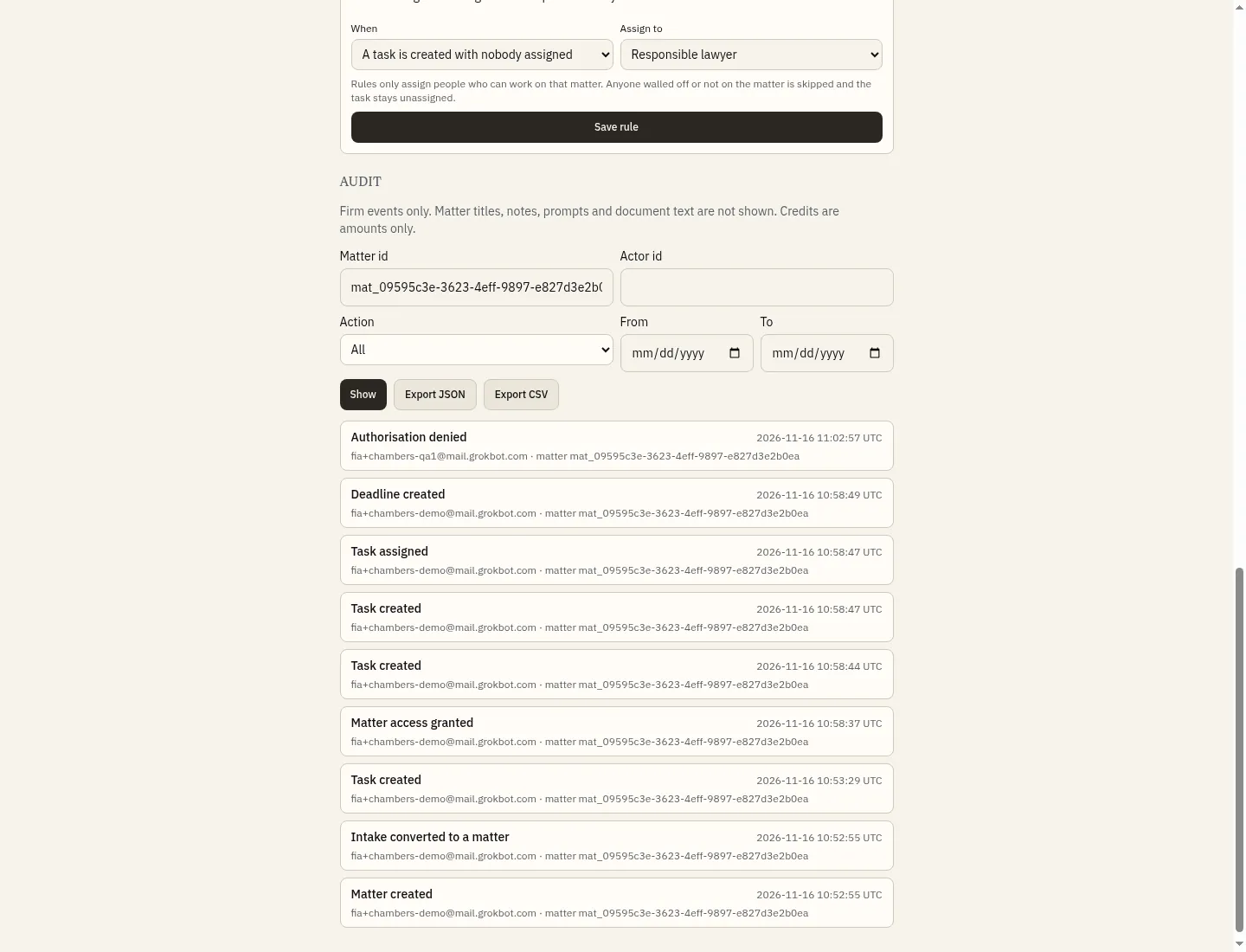
Activity on the matter is a diary of who did what and when. It records credits only — not prompts, notes or document text. The firm Audit log, at the bottom of the Firm page, is the append-only record for the firm. Filter by matter id and export JSON or CSV. Matter titles, notes, prompts and document text are not shown.
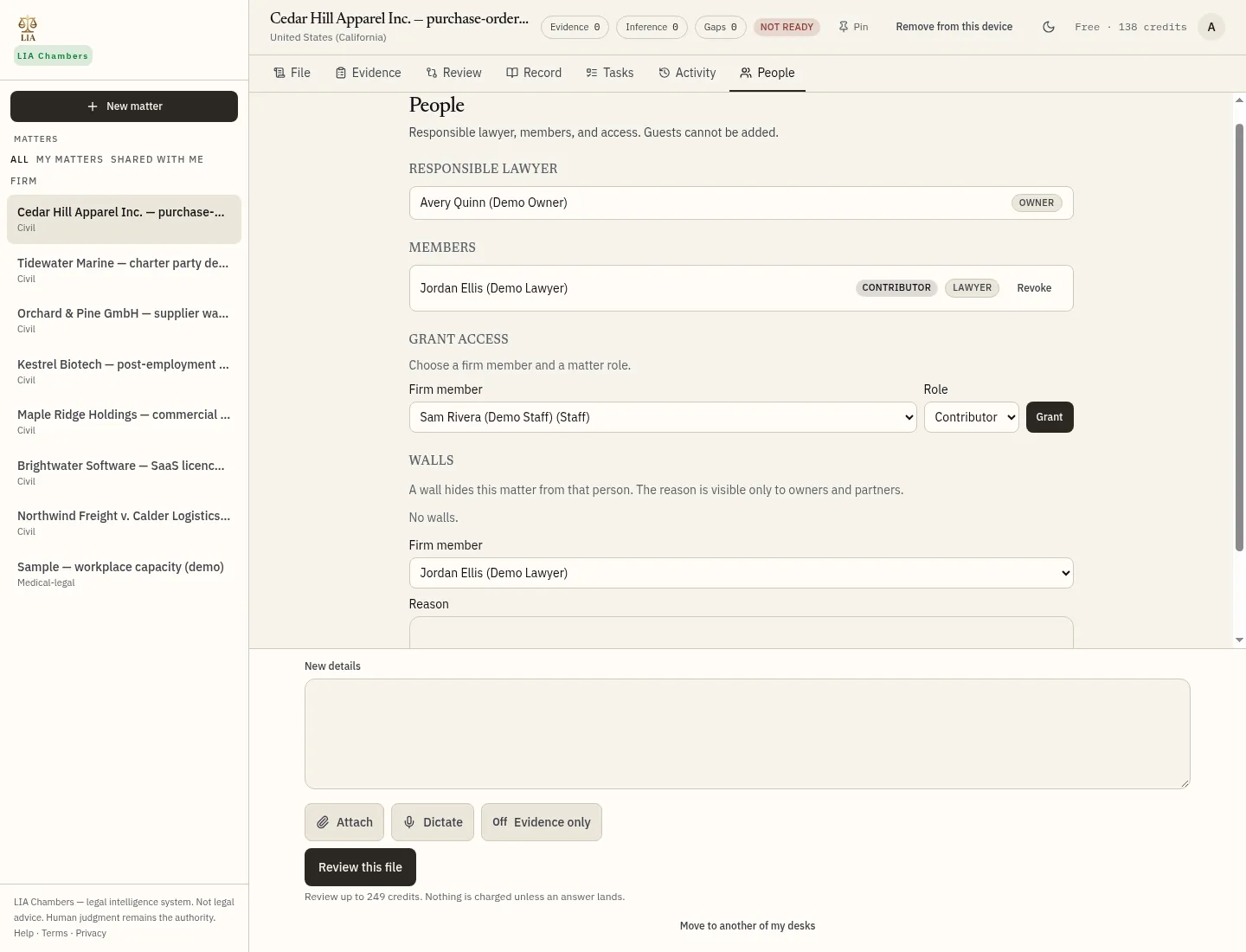
People, access and walls
On the matter's People tab, grant a firm member access and choose a role (lead, contributor or viewer). You can also place a wall, which hides the matter from that person; the reason is visible only to owners and partners. In this walk-through, Jordan Ellis has been added as a contributor. Guests cannot be added.
Human judgment remains the authority.